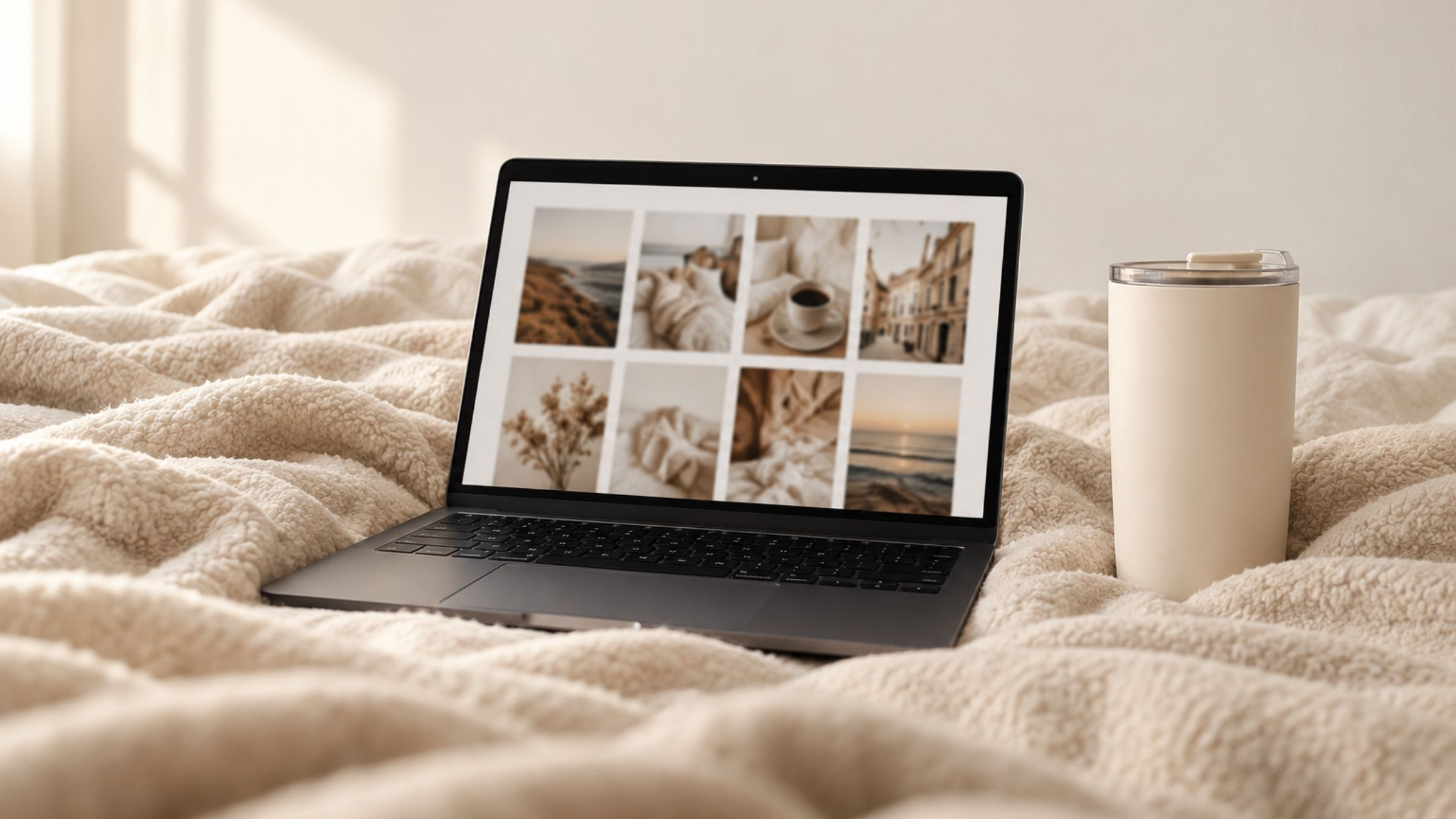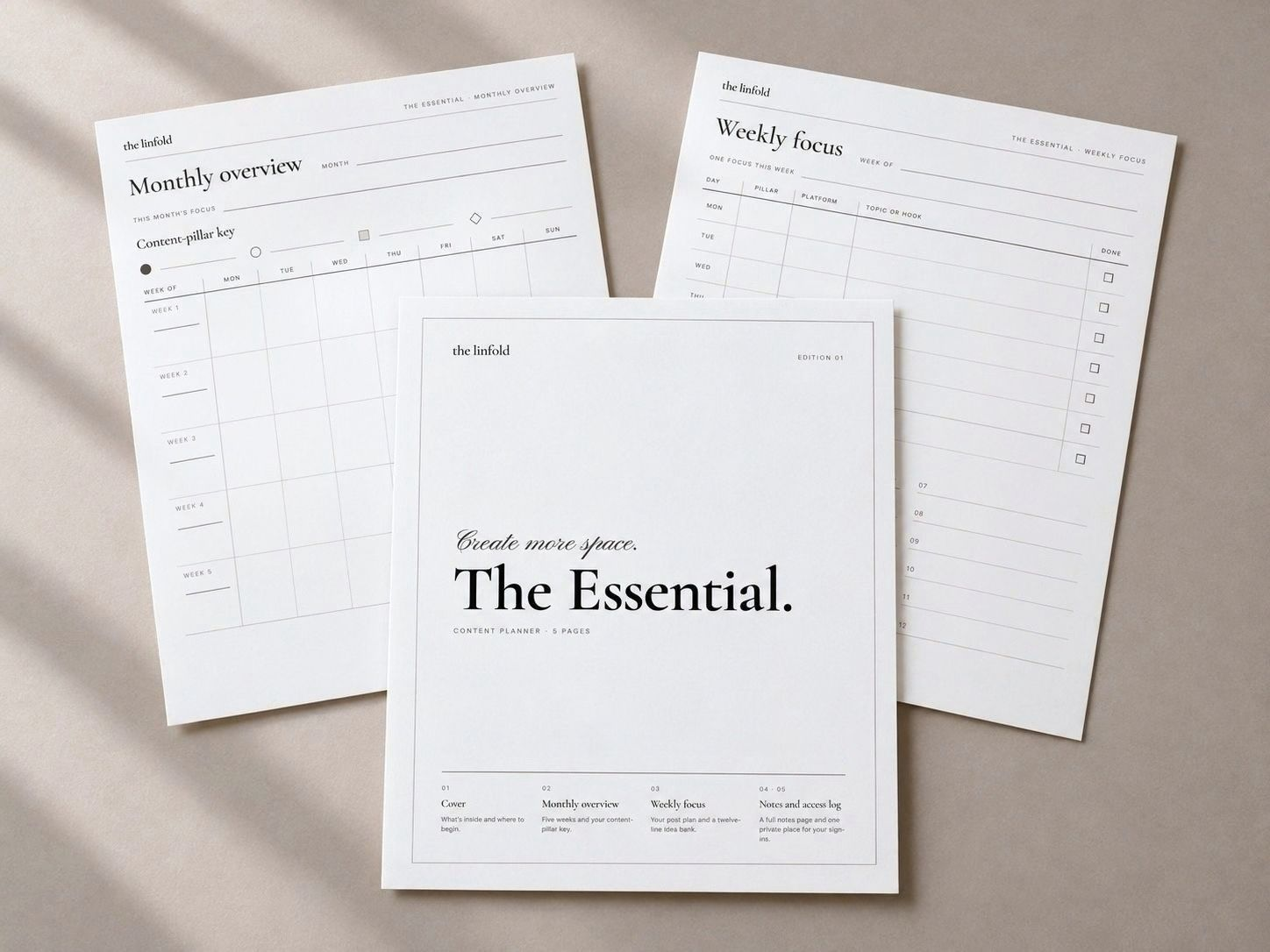
A product can be useful and still leave a visitor unsure about buying it. The name sounds promising, the mockup looks polished, but the page never quite explains what arrives after checkout.
Good product copy gives those details a clear order. It helps a reader decide whether the resource fits their task and how they will use it.
Start with clarity, then add your brand’s voice around it.
1. Name the product and its job
Keep the product name readable and include the type of resource nearby. A creative name can sit beside “weekly content planner” or “Notion project workspace.”
Follow it with one sentence about the task: “Plan your next week of content and keep topics, channels and next steps on one page.”
That tells the visitor more than a broad promise to transform their business.
2. Explain who it fits
Describe the situation where the product is useful. For example, a small weekly calendar may suit an independent creator who wants to plan a few connected pieces at a time.
Be clear when the scope is limited. If it does not include team approvals, automated scheduling or performance reporting, avoid imagery or copy that suggests those features.
Fit helps the right person recognize the resource and makes the purchase easier to judge.
3. List the contents precisely
State the pages, files or workspace sections included. Add the format, dimensions or paper size and any required account or software.
Distinguish printable from editable. A PDF that someone can print is not automatically a fillable PDF, a Canva template or a planner with interactive navigation.
For an illustrative three-page download, the contents might be one weekly plan, one idea page and one instruction sheet. The page count and contents must match the delivered files.
4. Show the product clearly
Include at least one preview where the contents are easy to see. A styled photograph can set the mood; a readable page preview helps explain the purchase.
Use the current version. If a photograph includes a pen, tablet or decorative accessories, make the digital format clear so those items are not mistaken for included goods.
5. Describe the first use
Explain what the buyer does after downloading: open the file, print the chosen pages and fill in the weekly priority. For a software template, explain how to access their own copy and where the setup instructions live.
Add practical answers about software requirements, editing, printing, permitted use and support. State the policy that applies to the product rather than leaving buyers to infer it.
6. Use a clear purchase button
Choose wording that describes the action, such as “Buy the Planner.” Keep the price and format near the button, and make the checkout destination work on mobile.
Before publishing, compare the page with the delivered file. Could a reader tell what they receive, what they need and how to begin?
Ask someone unfamiliar with the product to answer those questions from the page alone. Their uncertainty will show you where the copy needs another concrete detail.
Before You Buy Another Template looks at the same page from the buyer’s side, and How to Build a Business Online, One Useful Offer at a Time helps you decide what the page should sell.
Fresh reads, useful tools and a little inspiration for your home and working life. Join The Letter to stay in the fold.
Keep reading